App Documentation
Home Page (Admin View)
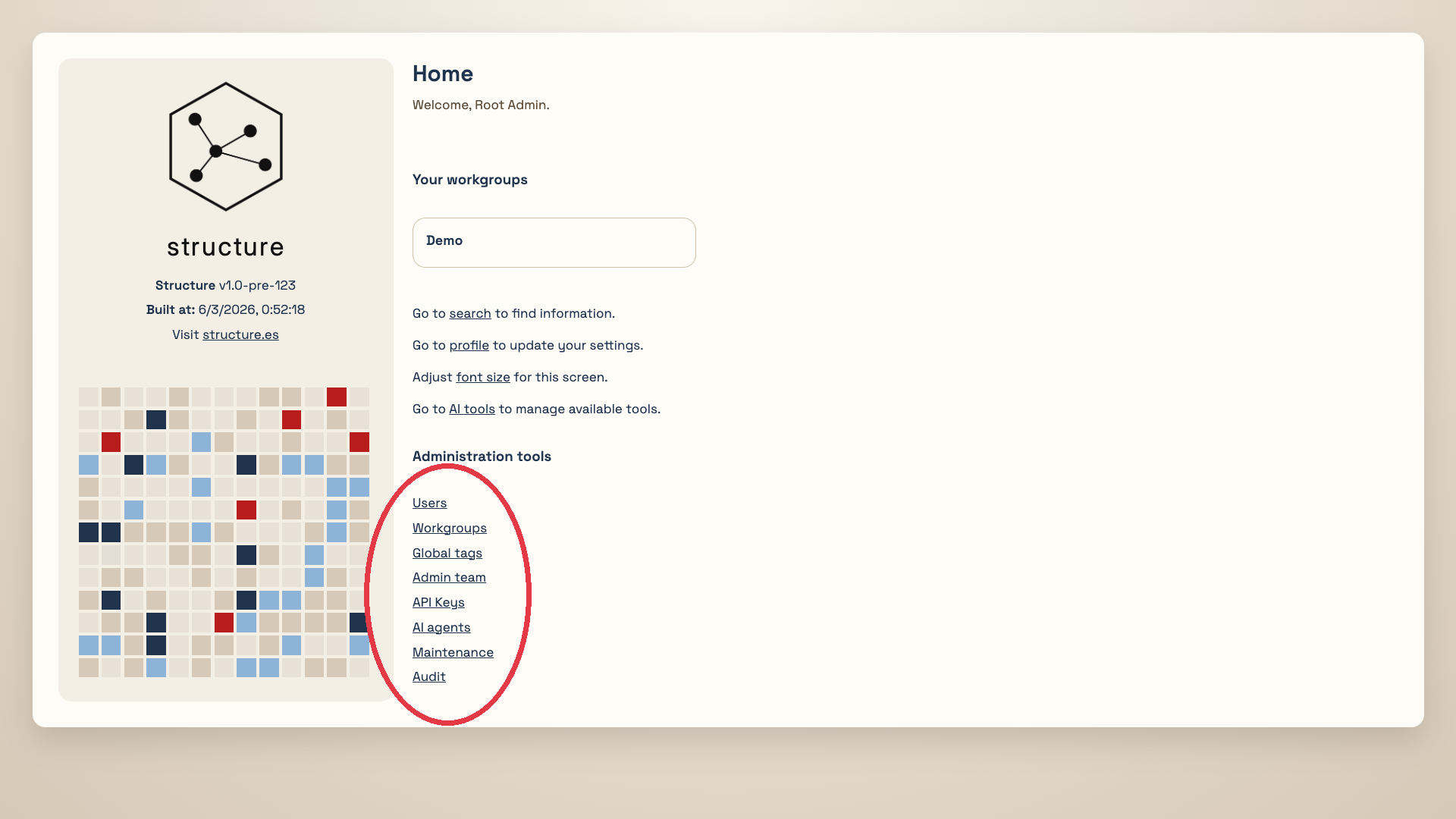
This is the home page of the application.
If the user has administrator permissions, this page includes quick access to administrative tools for managing users and workgroups, enabling or disabling maintenance mode, and handling other system-level operations.
Maintenance Console
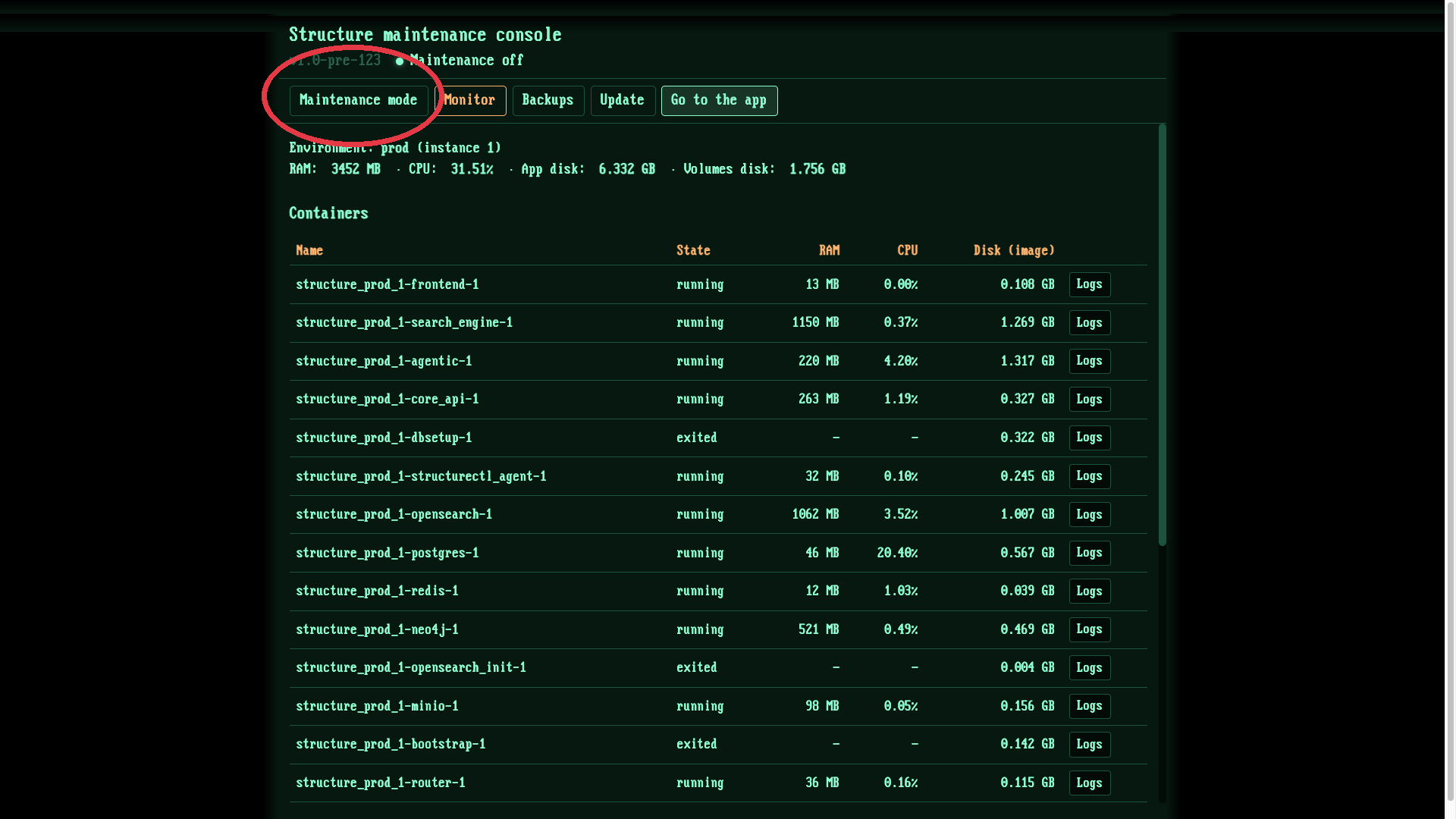
This is the maintenance console. It has a distinct visual style compared to the rest of the application.
From this console, administrators can monitor the Docker containers and volumes used by the app, run backups, and perform application updates.
Before starting an update, maintenance mode must be enabled using the indicated button. This will block access to the app for all users.
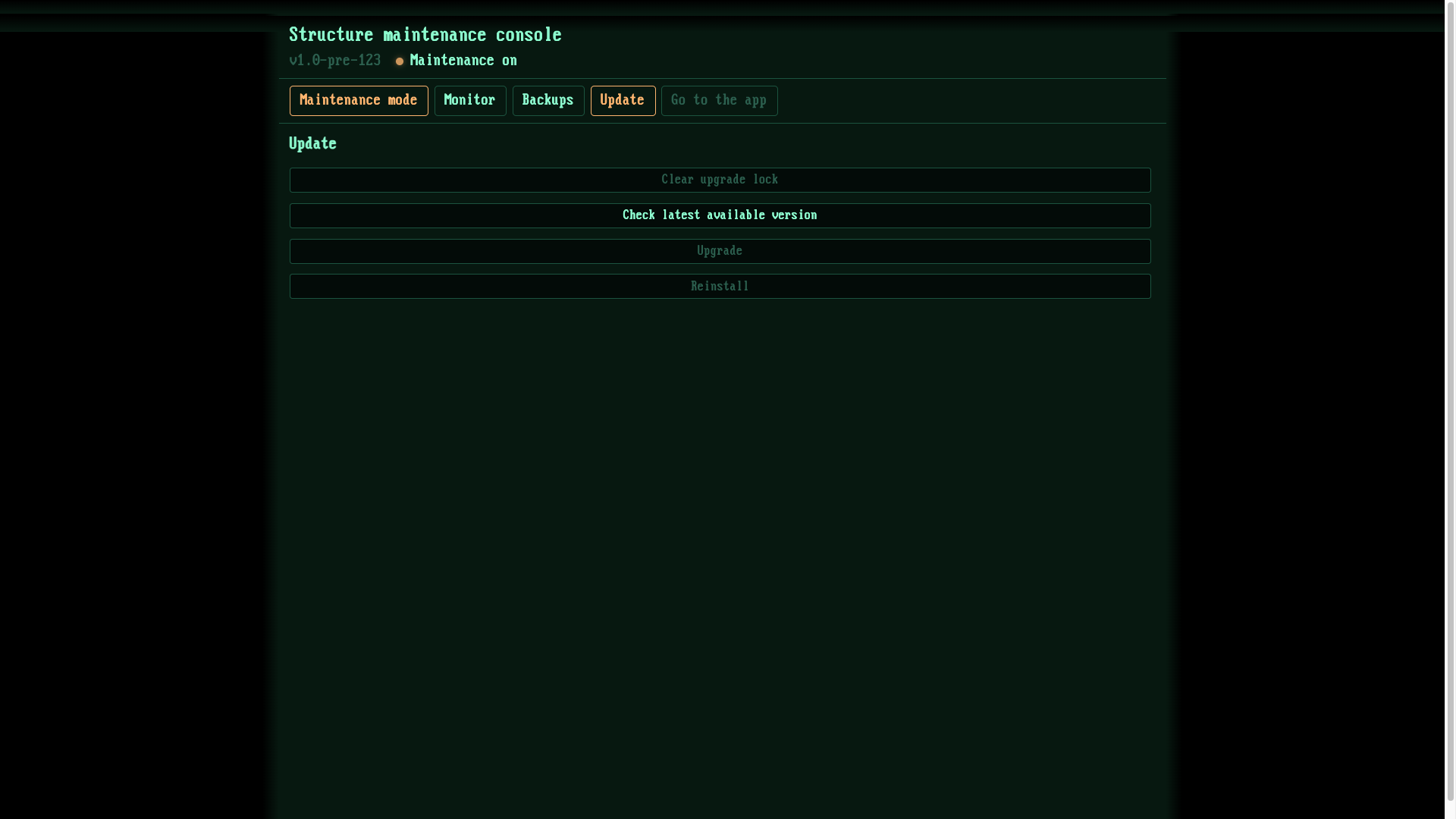
The upgrade procedure then continues in the Update section by clicking the option to check whether a new version is available.
This check can be performed even when maintenance mode is not active. At this point, the app connects to the structure.es server to verify the latest available version.
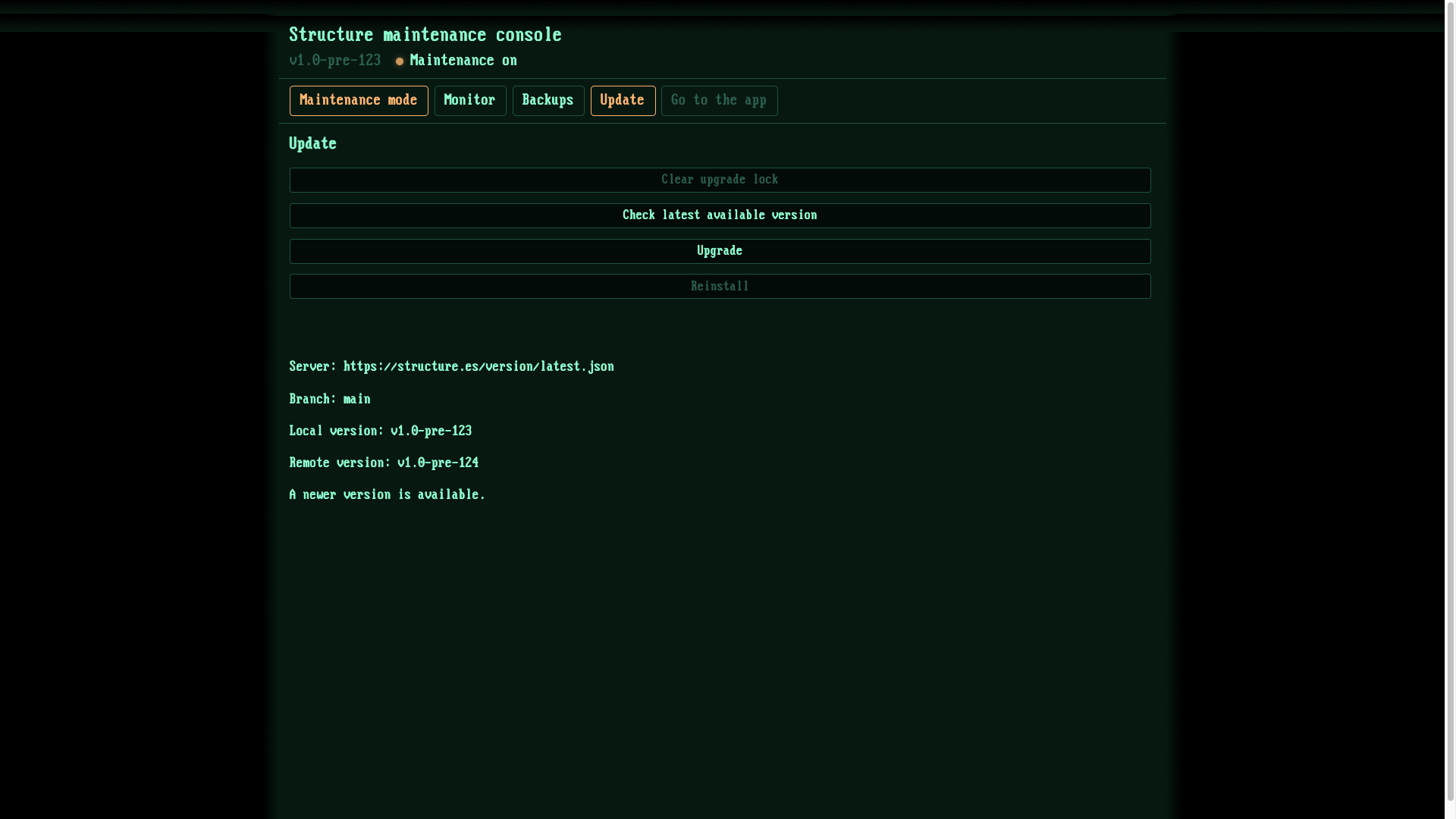
This screenshot shows the result of that check. The Upgrade action is enabled because a newer version was found and maintenance mode is active.
The update process can take a few minutes.
Wiki Pages and Cells
In structure.es, a wiki page is similar to a folder in a file system, with its own specific path.
A page can contain cells (the equivalent of files) and can also include subfolders.
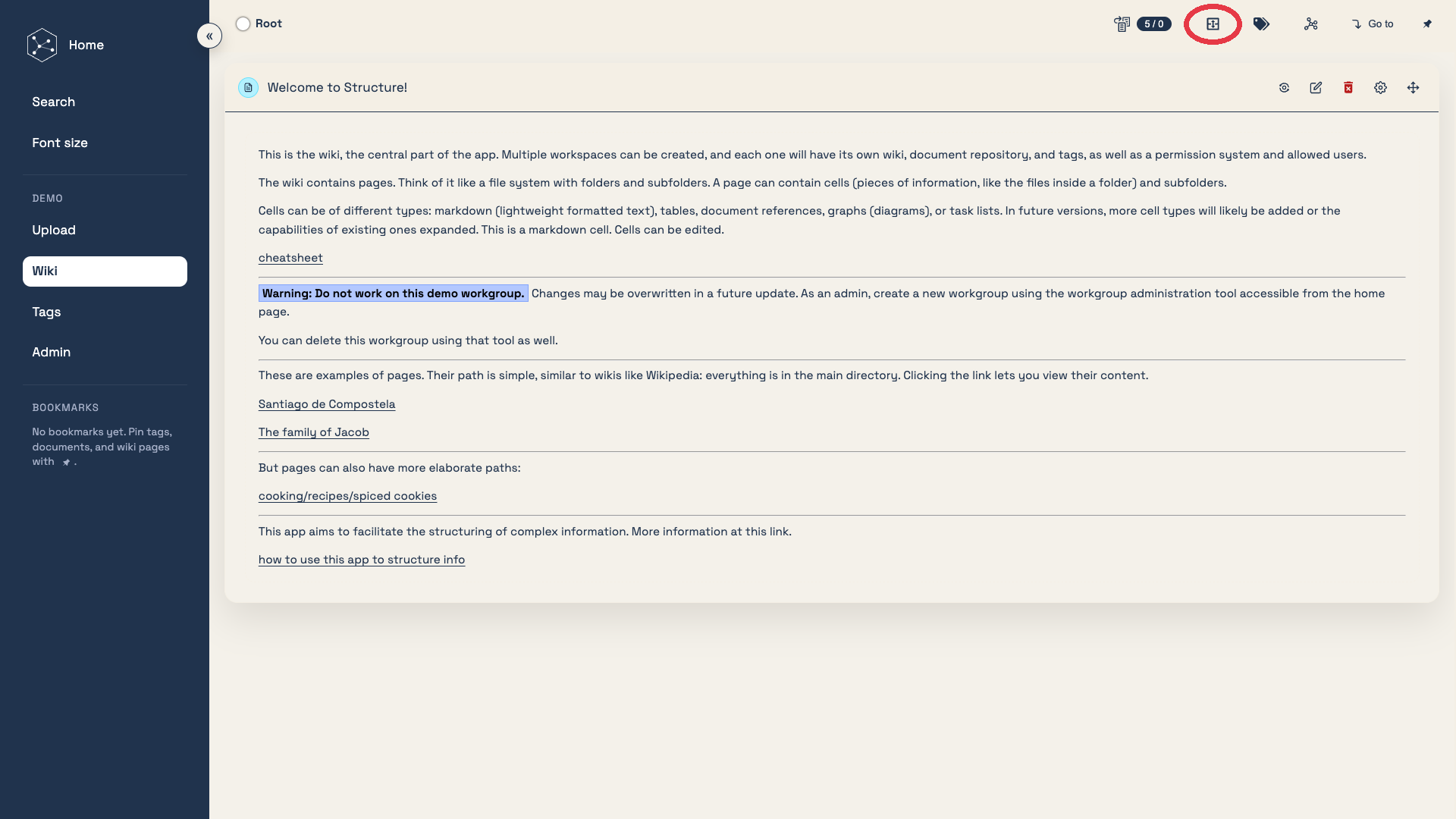
In this screenshot, you can see the icon used to add cells and navigate through them.
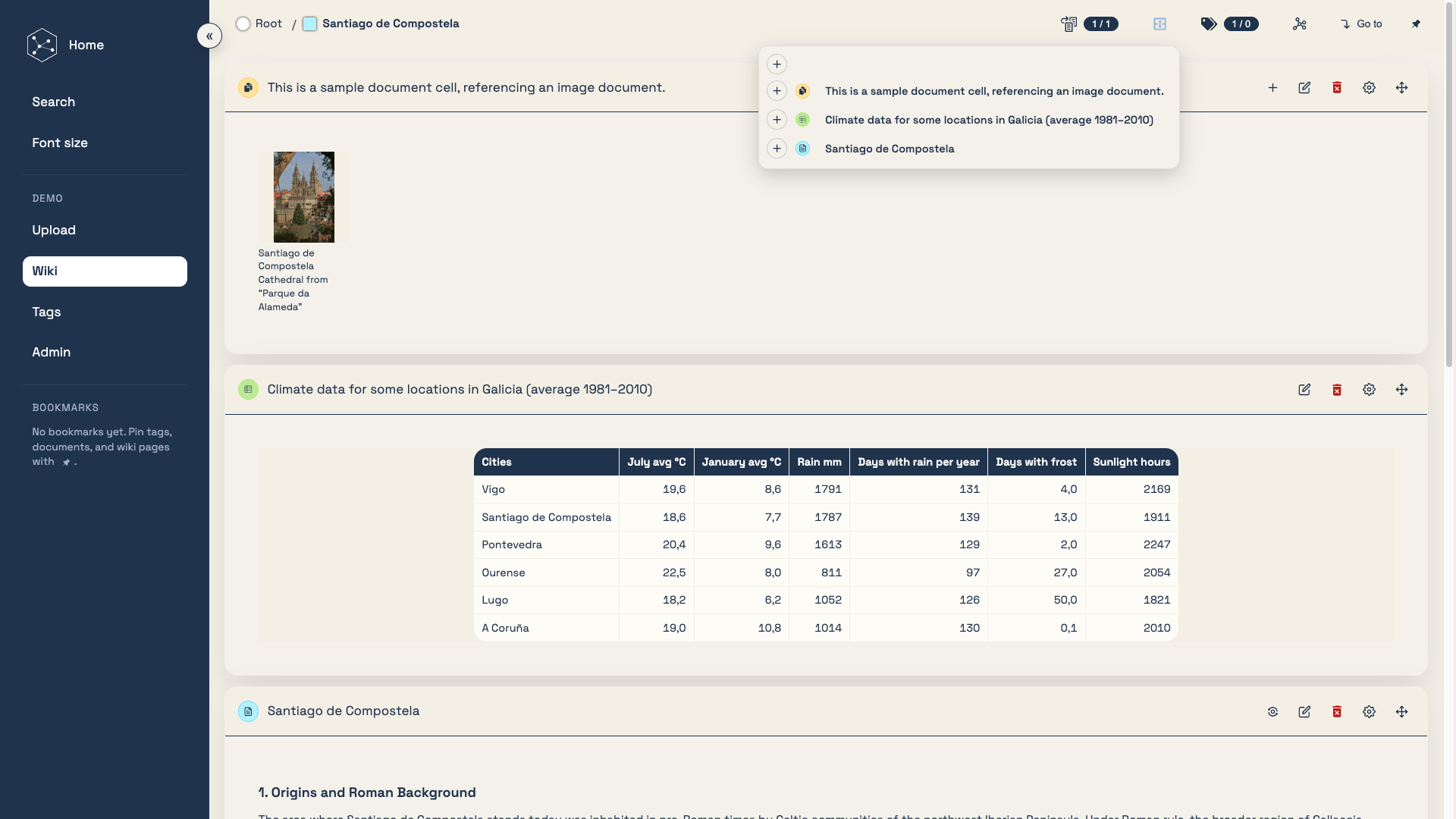
Here, we are on a page that already contains cells.
Cells are listed with their type icon and name. Clicking a cell moves the page scroll directly to that cell. Clicking the + icon lets you create a new cell immediately after the selected one.
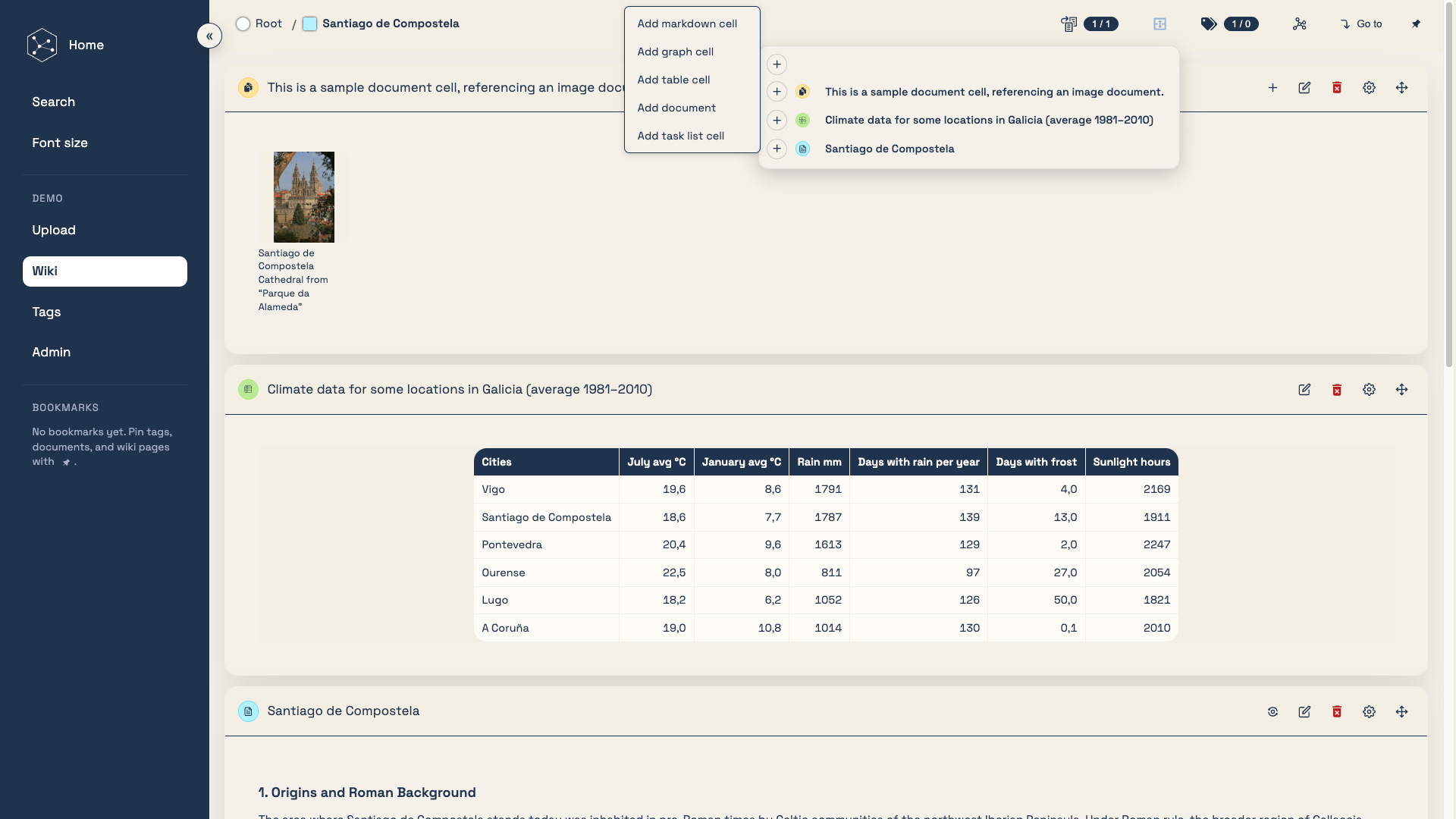
This screenshot shows the expanded menu for adding a new cell.
Additional cell types will be added in the future.
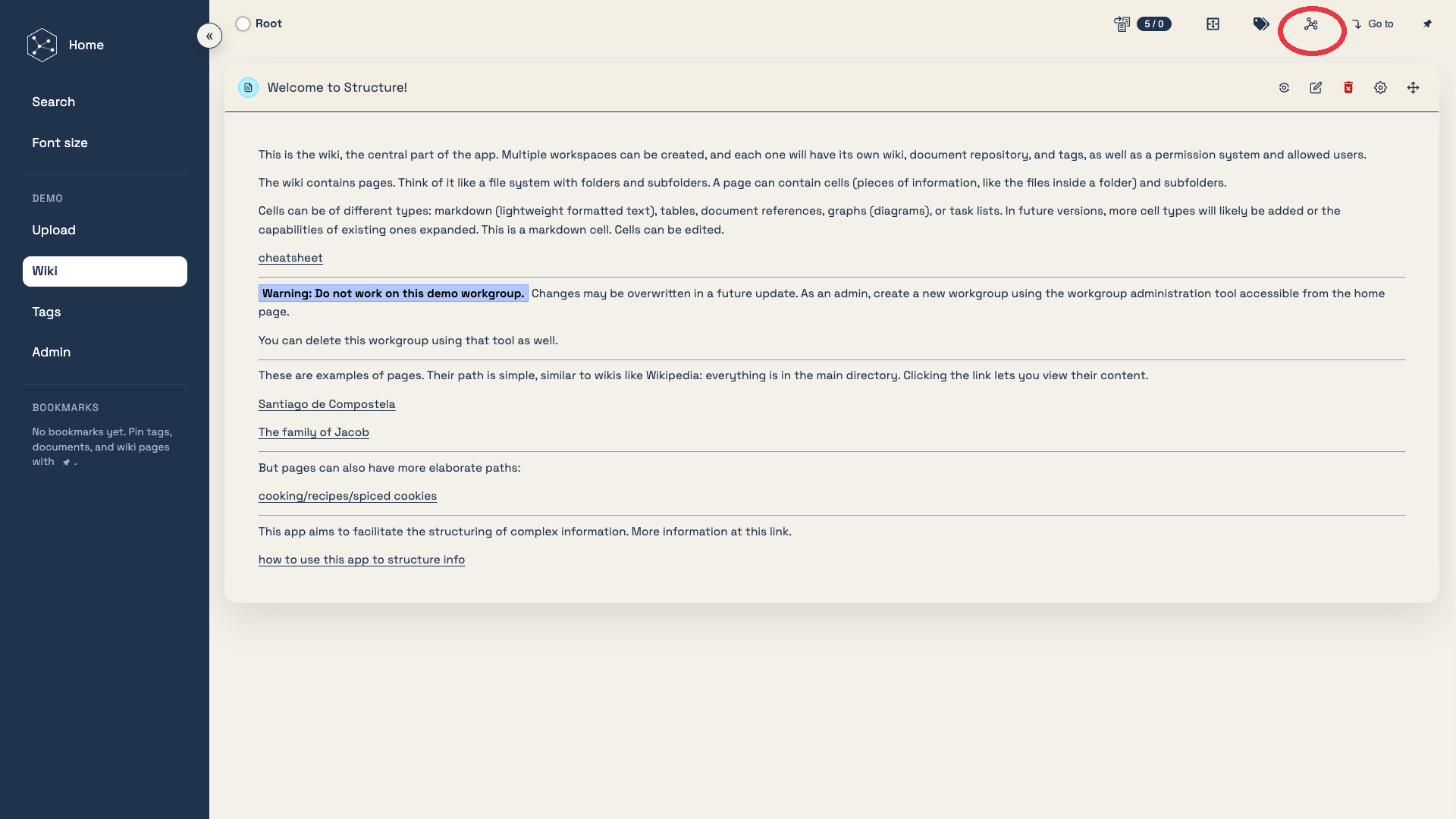
This screenshot shows the icon used to expand or collapse the graph panel.
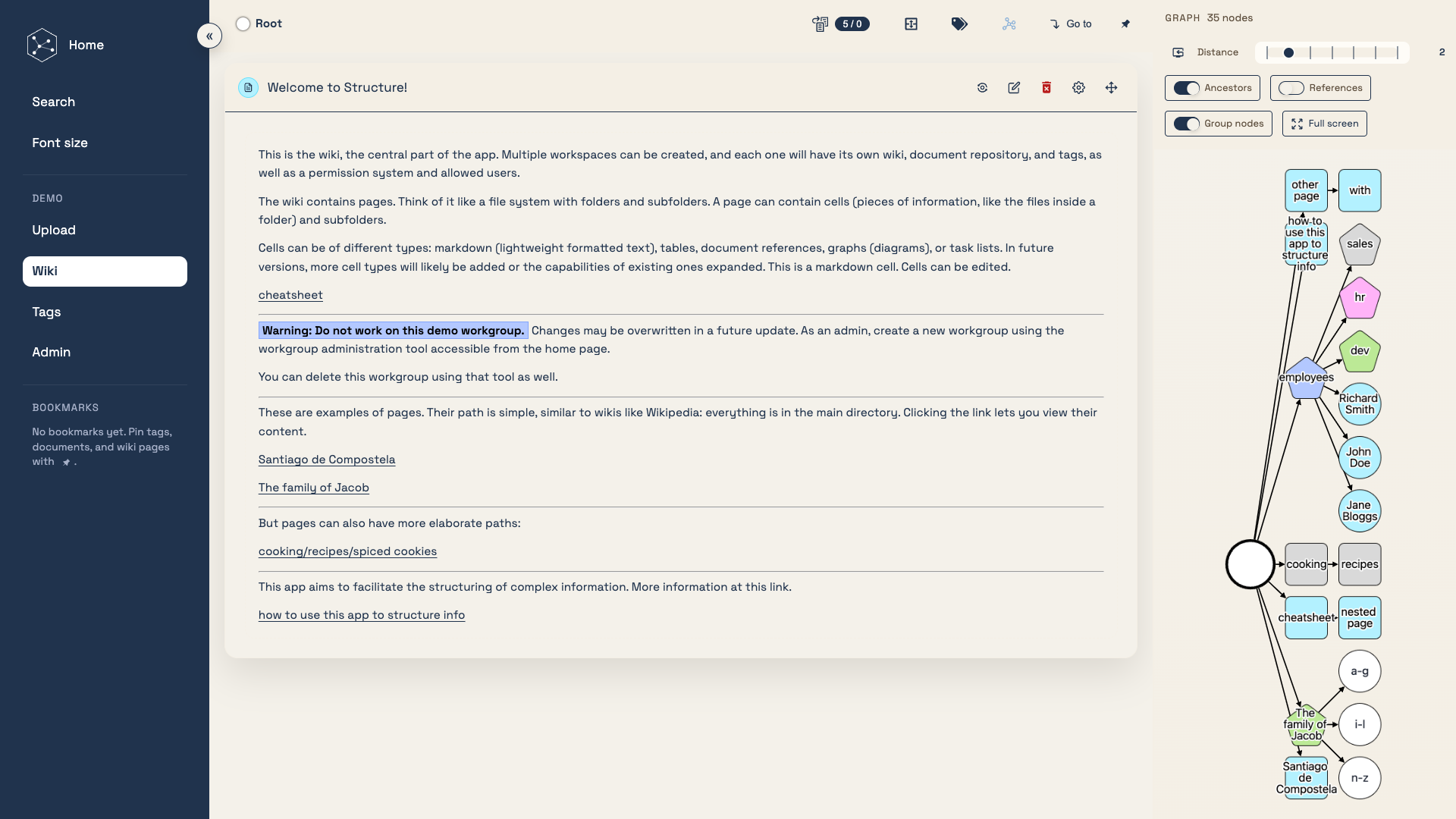
Here, the graph panel is expanded. It displays a view of the directory tree around the current node, and additional options can also be enabled.
Clicking any node navigates directly to that page.
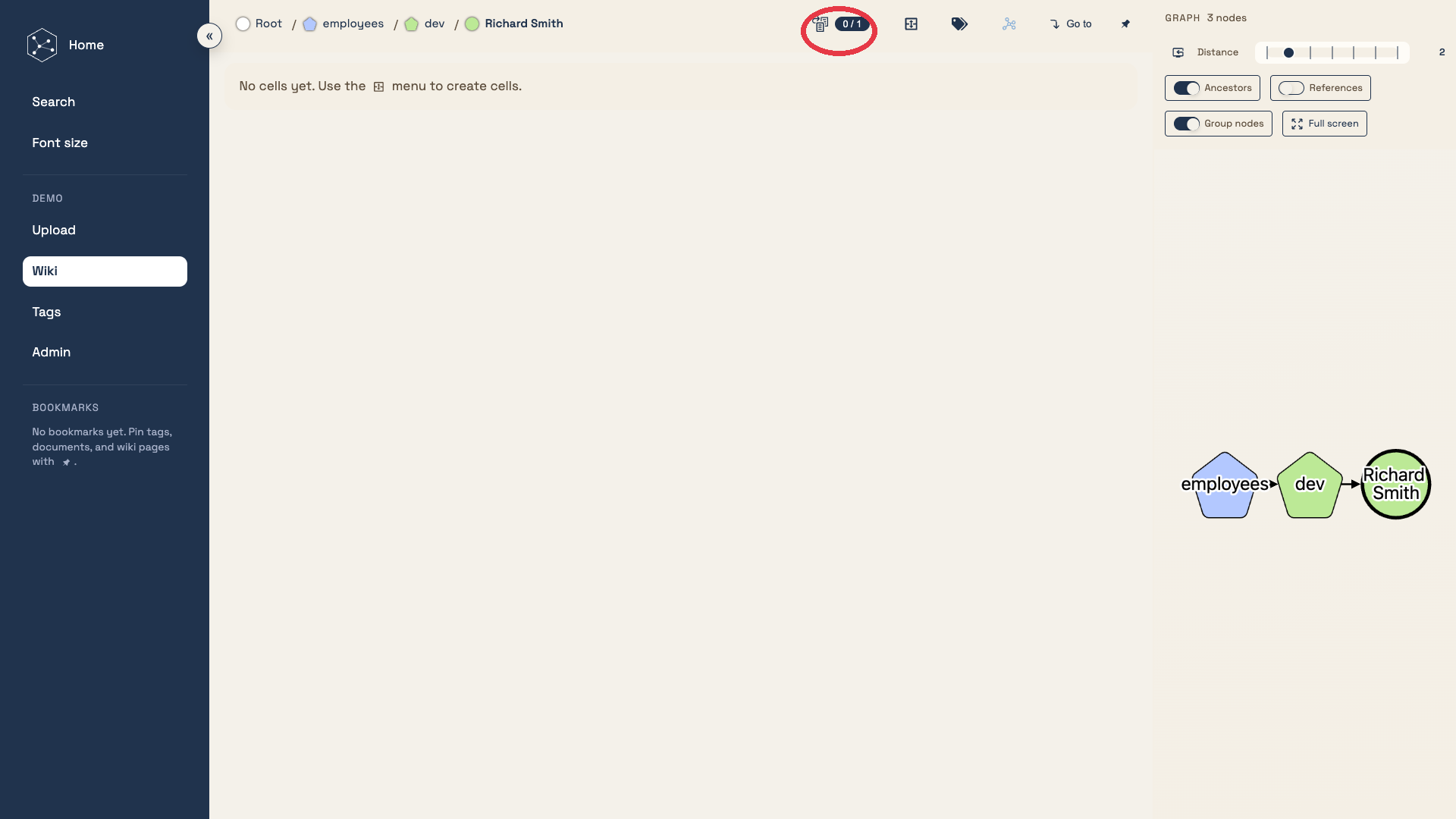
This screenshot shows the icon used to inspect references related to the current page, including pages and documents referenced by it, and incoming references that point to it.
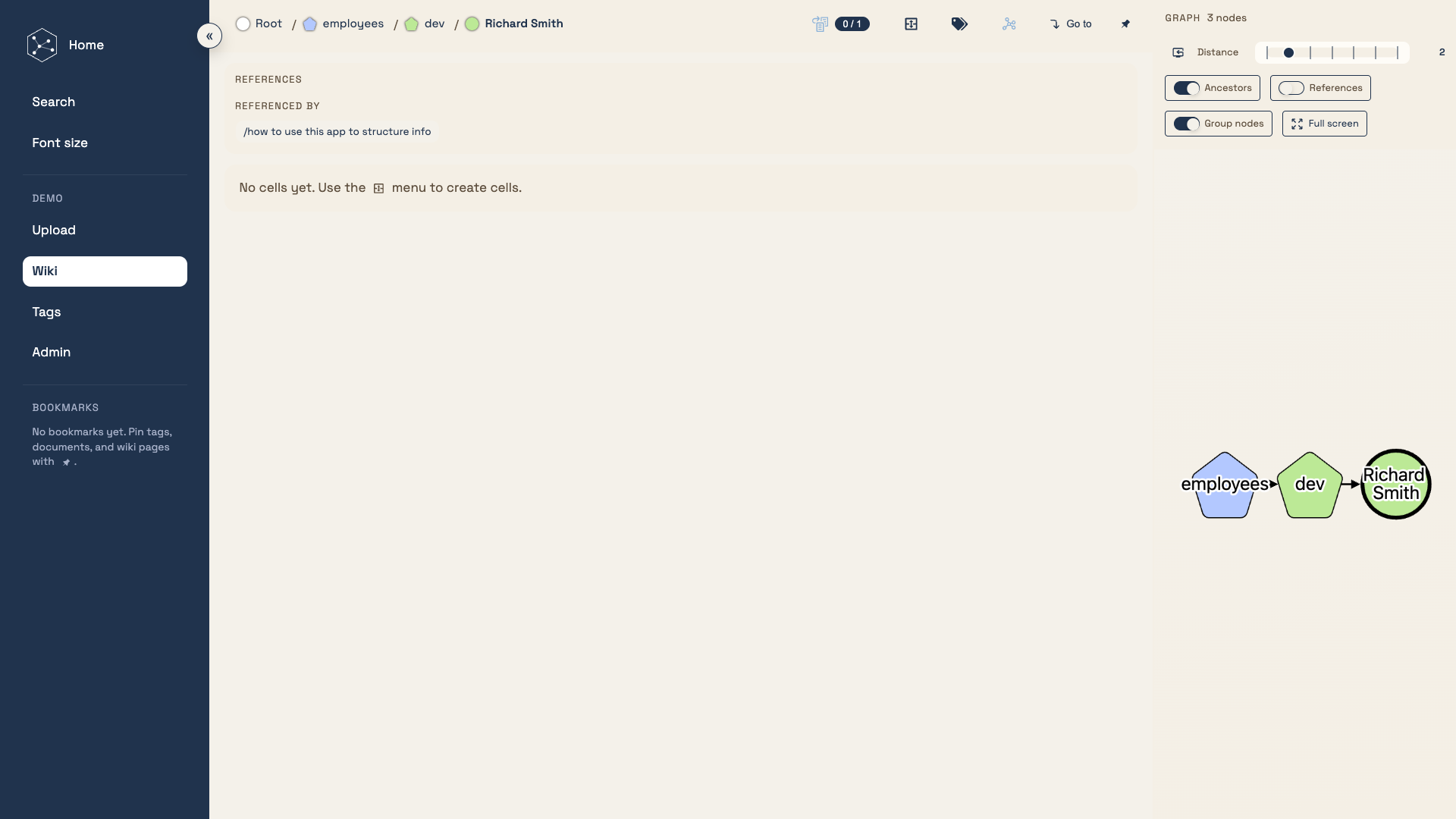
Here, the references panel is expanded.
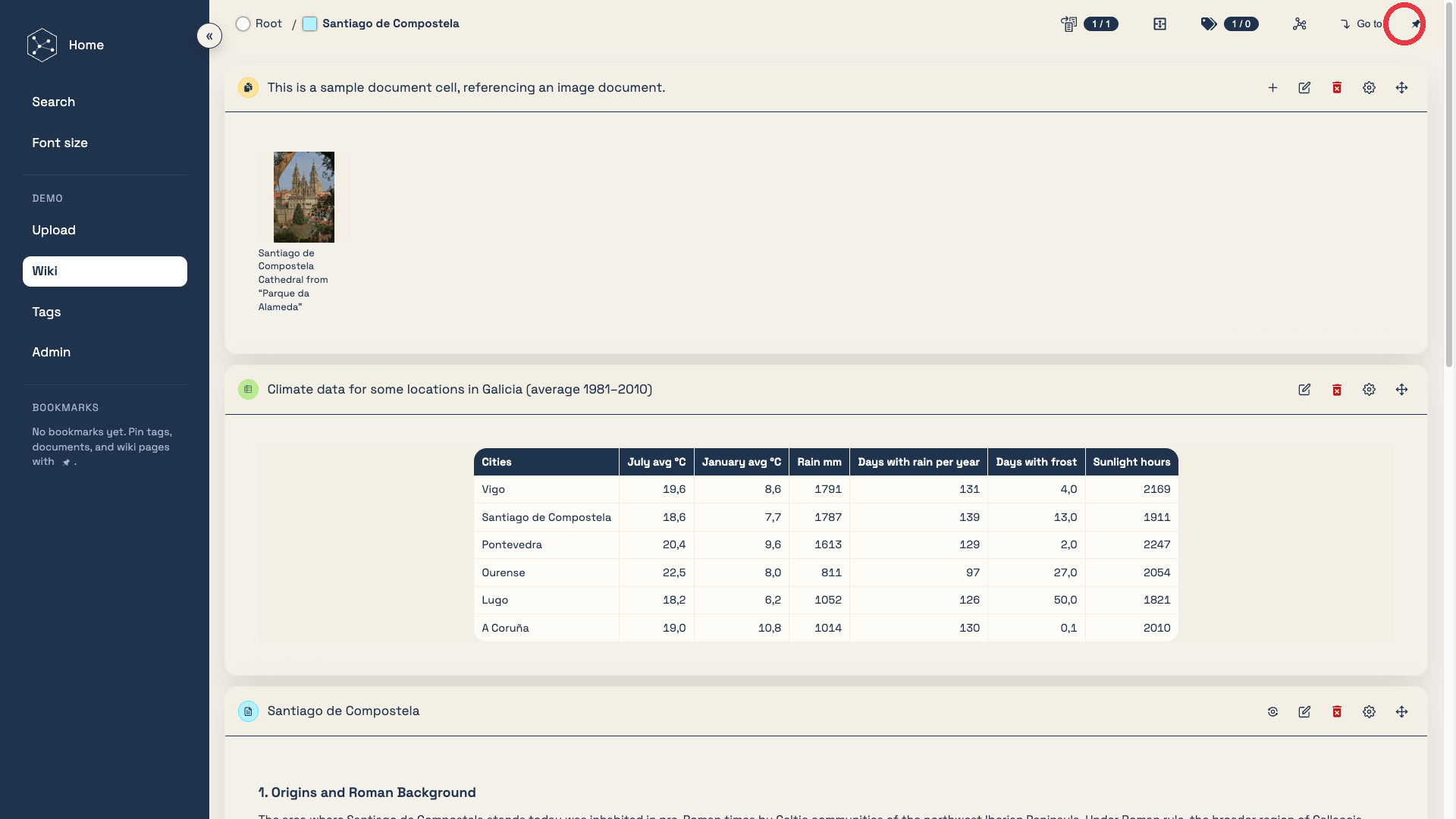
This icon, available on wiki pages, documents, and tags, lets you add or remove the current item from the shortcuts area in the left sidebar.
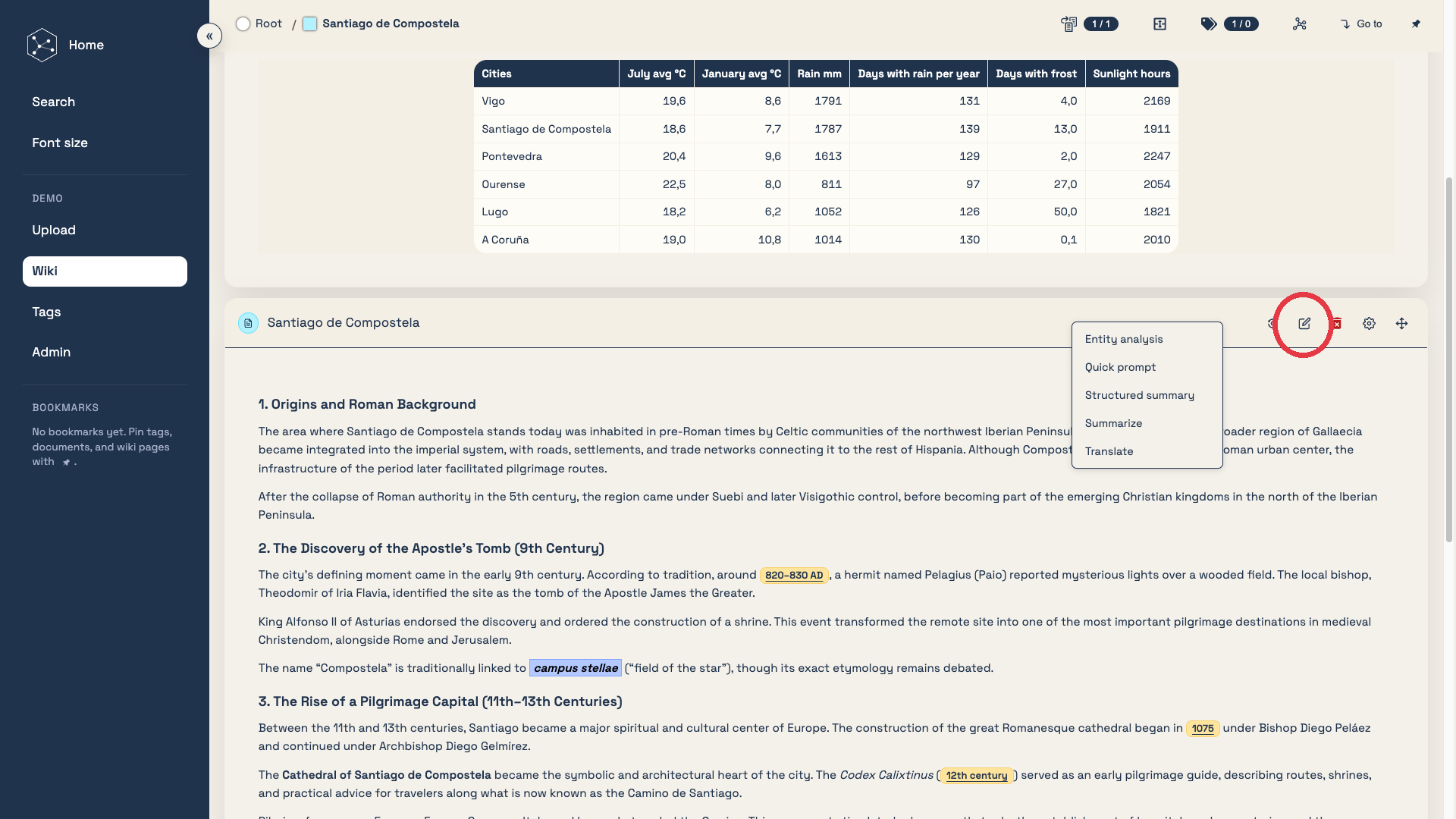
This screenshot shows some AI-powered tools for processing Markdown cells (formatted text).
To enable these features, you must provide an API key from https://groq.com in the AI agents section on the Home Page.
Users are responsible for any costs generated by their API usage.
From the Home Page, in the AI tools section, users can also design custom tools.
Future releases are planned to include more built-in tools and support additional model providers, such as OpenAI, Google, and local servers using vLLM or Ollama.
Search
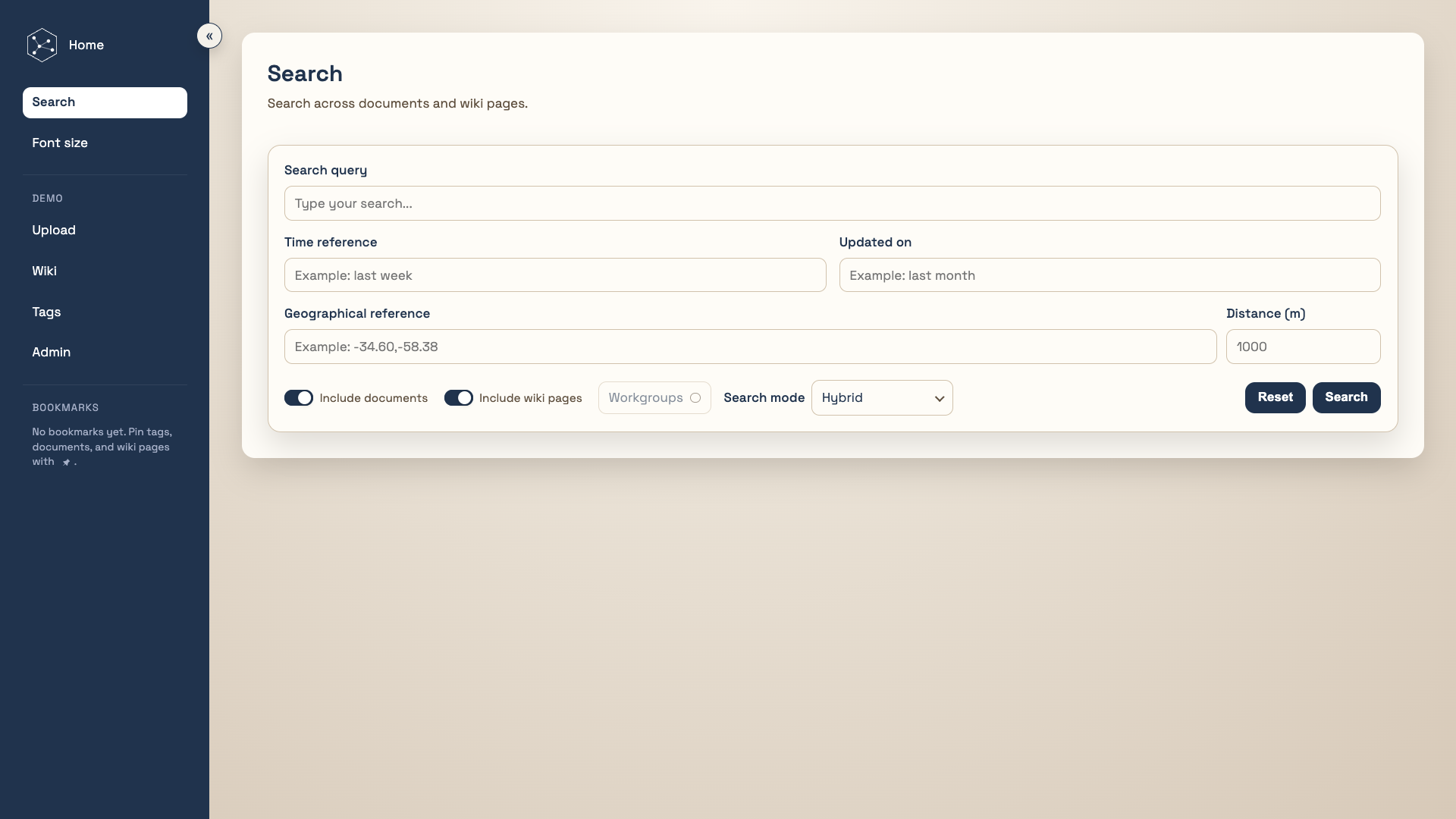
The search page can be opened from the Home Page or from the left sidebar.
From here, users can search across the information stored in the current structure instance.
Search is powered by the OpenSearch engine.